


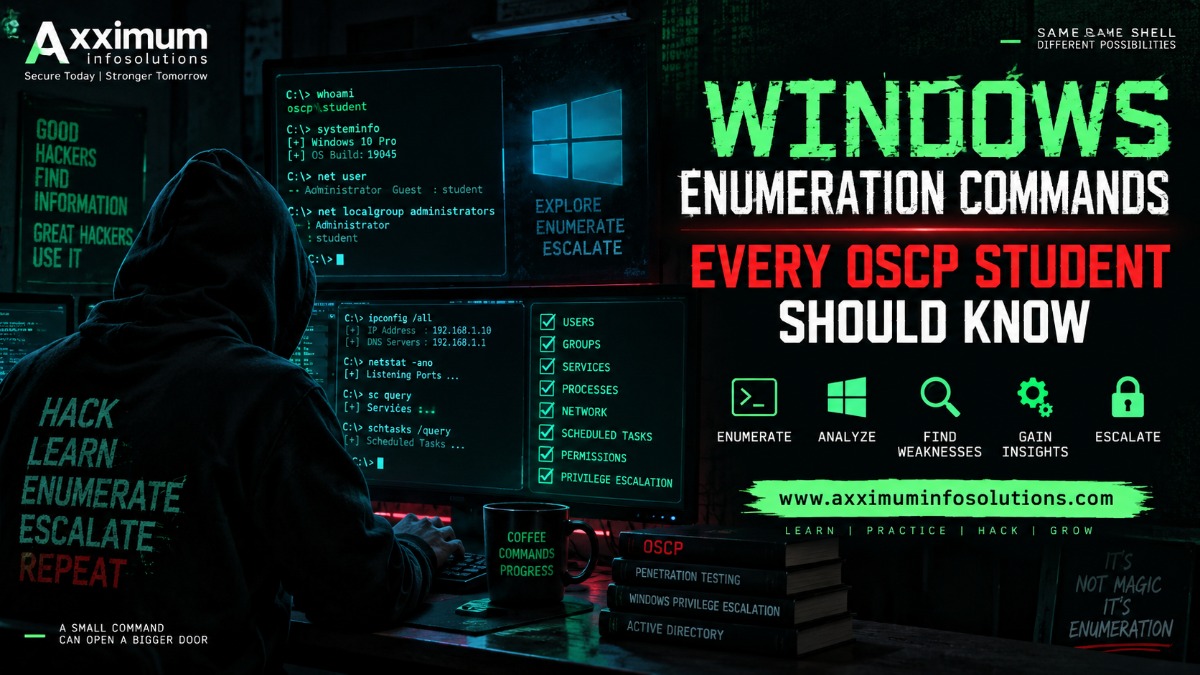
Windows Enumeration Commands Every OSCP Student Should Know
If you are preparing for the OSCP, enumeration is one of the skills you cannot afford to ignore.
Getting a shell on a Windows machine is only the beginning. The real challenge is understanding what that machine is running, which users exist, what privileges you have, what services are available, how the network is configured, and where a possible path to higher privileges may exist.
This is where Windows Enumeration Commands become extremely useful.
A good OSCP student does not simply run commands randomly. They build a picture of the target step by step.
In this guide from Axximum Infosolutions, we will explore practical Windows commands that can help you perform system, user, network, process, service, permission, and privilege enumeration during an authorized penetration test or OSCP lab.
Important: Use these techniques only on systems you own or have explicit permission to test, such as your OSCP lab, CTF environment, or authorized assessment.
What Is Windows Enumeration?
Windows enumeration is the process of collecting useful information about a Windows system after gaining authorized access.
The goal is to answer questions such as:
- What version of Windows is running?
- What architecture does the machine use?
- Which users exist?
- Which groups am I part of?
- What privileges does my account have?
- Which processes are running?
- What services are installed?
- Which ports are listening?
- What network interfaces are available?
- Which files and folders can I access?
- Are there interesting scheduled tasks?
- Are there configuration files containing useful information?
- Can any local misconfiguration lead to privilege escalation?
Enumeration turns an unknown Windows machine into a system you can understand.
Why Windows Enumeration Matters in the OSCP
In an OSCP-style environment, you often receive very little information about a compromised Windows host.
You may have a basic command shell, but you need to determine what to do next.
That is why enumeration should become a habit.
For example, discovering that your current account belongs to an interesting local group can completely change your next steps. Similarly, finding a vulnerable service, weak file permissions, or an unusual scheduled task may reveal a potential privilege escalation path.
A useful mindset is:
Shell → Enumerate → Identify Weakness → Validate → Escalate
Do not rush into exploitation before understanding the machine.
1. Identify the Windows Version
Start by finding out what operating system you are dealing with.
systeminfo
systeminfoThis is one of the most useful built-in Windows enumeration commands.
It can reveal:
- Windows version
- OS build
- System architecture
- Hostname
- Installation date
- Registered owner
- Hotfix information
- Boot time
- Domain information
For OSCP preparation, learn to quickly scan the output rather than reading every line.
ver
verThis provides a quick Windows version check.
wmic
On systems where WMIC is available:
wmic os get Caption,Version,BuildNumber,OSArchitectureNote: WMIC has been deprecated on modern Windows versions, so do not depend on it exclusively.
2. Check the Hostname
Knowing the hostname can provide useful context.
hostnameYou may discover naming conventions that indicate:
- Server roles
- Development machines
- Domain controllers
- Workstations
- Internal environments
Hostname information can also help you understand where the compromised machine fits into the network.
3. Find the Current User
One of the first questions after obtaining a shell should be:
Who am I?
Use:
whoamiFor additional information:
whoami /allThe /all option is particularly useful because it can show:
- Username
- User SID
- Group memberships
- Privileges
- Integrity level
This is extremely important during Windows privilege escalation.
4. Enumerate Windows Users
List local users
net userThis provides a list of local accounts.
To examine a specific account:
net user usernameFor example:
net user administratorLook for useful information such as:
- Account status
- Password requirements
- Group memberships
- Last logon information
PowerShell alternative
Get-LocalUserThis can provide more structured information about local accounts.
5. Enumerate Local Groups
Groups can be just as important as users.
net localgroupTo inspect a particular group:
net localgroup "Administrators"You can also check groups associated with your current account:
whoami /groupsPay close attention to unusual or privileged group memberships.
For example, membership in a powerful local group may significantly affect your available attack surface during an authorized assessment.
6. Check Domain Information
If the machine belongs to a Windows domain, identify the domain.
whoami /fqdnYou can also check:
echo %USERDOMAIN%And:
echo %COMPUTERNAME%Another useful command is:
systeminfoLook for the Domain field.
Understanding whether the system is standalone or domain-joined helps you choose the right enumeration approach.
7. Enumerate Network Configuration
Network enumeration is essential.
Start with:
ipconfigFor detailed information:
ipconfig /allLook for:
- IP address
- Subnet mask
- Default gateway
- DNS servers
- DHCP information
- Network adapters
- Domain suffix
This information can help you understand the host’s network position.
8. Check the Routing Table
Use:
route printThe routing table can reveal additional networks that the machine can communicate with.
This is particularly useful when investigating segmented lab networks.
You may find:
- Internal subnets
- Additional interfaces
- Static routes
- Gateway information
9. Check Active Network Connections
One of the classic Windows enumeration commands is:
netstat -anoUseful options include:
netstat -anThe -o option can associate network connections with process IDs.
For example:
netstat -anocan help you identify:
- Listening ports
- Established connections
- Remote IP addresses
- Process IDs
You can then investigate the corresponding process.
10. Enumerate Running Processes
Processes can reveal applications, services, scripts, and security software running on the machine.
CMD
tasklistFor more detailed information:
tasklist /vTo search for a specific process:
tasklist | findstr /i "powershell"PowerShell
Get-ProcessYou can also format process information:
Get-Process | Select-Object Id,ProcessName,PathLook for:
- Unusual applications
- Administrator-owned processes
- Security software
- Custom applications
- Services running from unusual directories
11. Enumerate Windows Services
Services are extremely important during Windows privilege escalation.
List services with:
sc queryAnother useful command:
net startFor PowerShell:
Get-ServiceTo inspect a specific service:
sc qc ServiceNameFor example:
sc qc SpoolerPay attention to:
- Service executable paths
- Service accounts
- Startup type
- Running status
- Custom services
Misconfigured services can sometimes create opportunities for privilege escalation.
12. Find Services Running as SYSTEM
A service running with powerful privileges deserves attention.
You can use:
sc queryand investigate individual services with:
sc qc ServiceNamePowerShell can also help:
Get-CimInstance Win32_Service | Select-Object Name,StartName,State,PathNameThis provides useful information about:
- Service name
- Account used to run the service
- Current state
- Executable path
13. Enumerate Scheduled Tasks
Scheduled tasks are another important area.
Use:
schtasks /query /fo LIST /vThis can produce a large amount of information.
Look for:
- Tasks running with elevated privileges
- Custom scripts
- Unusual executable paths
- Tasks running as SYSTEM
- Writable scripts or binaries
PowerShell can also enumerate tasks:
Get-ScheduledTaskScheduled tasks are worth checking carefully because they may run automatically under a privileged account.
14. Check Windows Privileges
One of the most important commands for privilege escalation is:
whoami /privThis lists privileges associated with your current token.
You might encounter privileges such as:
SeBackupPrivilegeSeRestorePrivilegeSeImpersonatePrivilegeSeDebugPrivilegeSeTakeOwnershipPrivilege
Not every enabled privilege automatically means successful escalation.
The important skill is understanding which privileges matter in the specific Windows version and configuration.
15. Check User and Group Memberships
Use:
whoami /groupsThis helps identify the security groups associated with your current token.
Also try:
net user %USERNAME%This can provide information about your current account.
The combination of:
whoami /allwhoami /groupswhoami /privgives you a strong initial picture of your security context.
16. Search for Interesting Environment Variables
Windows environment variables can reveal useful information.
setCommon variables worth checking include:
echo %PATH%echo %TEMP%echo %USERPROFILE%echo %APPDATA%echo %PROGRAMDATA%These can help you understand:
- User directories
- Application locations
- Temporary directories
- Executable search paths
17. Enumerate the PATH Variable
Check:
echo %PATH%The PATH variable determines where Windows searches for executable files.
During an authorized assessment, unusual or writable directories in the PATH may deserve further investigation.
The important question is not simply:
“What directories are listed?”
Instead ask:
“Are any of these directories writable, unusual, or associated with custom software?”
18. Check Windows Firewall Configuration
Depending on the Windows version and available tools:
netsh advfirewall show allprofilesThis can show firewall status and configuration.
You can also inspect firewall rules:
netsh advfirewall firewall show rule name=allThis may help explain why certain network services are or are not reachable.
19. Enumerate Shares
To list available network shares:
net shareYou can also check mapped network drives:
net useShares may reveal:
- Shared folders
- Administrative shares
- Network resources
- Storage locations
Always consider your current permissions when investigating them.
20. Check Mounted Drives
Use:
wmic logicaldisk get nameOn modern systems, PowerShell provides an alternative:
Get-PSDrive -PSProvider FileSystemYou may find:
C:- Additional local drives
- Network-mounted drives
Extra drives can contain applications, backups, configuration files, or other authorized assessment targets.
21. Enumerate Installed Software
Installed applications can reveal outdated or unusual software.
Try:
wmic product get name,versionHowever, remember that querying Win32_Product can be slow and may trigger consistency checks.
PowerShell alternatives can be more appropriate depending on the environment.
You can also inspect common directories:
dir "C:\Program Files"dir "C:\Program Files (x86)"Look for:
- Third-party applications
- Custom software
- Development tools
- Database software
- Backup software
- Remote administration tools
22. Check Important Windows Directories
Start with:
dir C:\Then:
dir "C:\Program Files"dir "C:\Program Files (x86)"dir C:\UsersThe C:\Users directory is especially useful for understanding local user profiles.
23. Enumerate User Profiles
dir C:\UsersYou can investigate individual profiles:
dir C:\Users\usernameCommon directories include:
- Desktop
- Documents
- Downloads
- AppData
During an authorized assessment, user directories may contain configuration files, scripts, application data, or other information relevant to the security assessment.
24. Check File and Folder Permissions
Windows provides the icacls command for examining permissions.
icacls C:\Path\To\FileFor a directory:
icacls C:\Path\To\DirectoryThis is particularly important when investigating:
- Services
- Executables
- Scripts
- Configuration files
- Scheduled task files
A privileged process using a file that a lower-privileged user can modify can be a significant security issue.
25. Search for Files
The dir command can help locate files.
For example:
dir C:\Users /s /bTo search for a specific extension:
dir C:\Users /s /b *.txtYou can also use:
where.exe filenameThis can help identify where an executable exists within the PATH.
26. Check PowerShell Version
PowerShell is extremely useful for Windows enumeration.
Check the version:
$PSVersionTableThis can help you understand which PowerShell features are available.
PowerShell commands can often provide cleaner and more detailed information than traditional CMD utilities.
27. Useful PowerShell System Enumeration
Operating system information
Get-CimInstance Win32_OperatingSystemComputer information
Get-CimInstance Win32_ComputerSystemProcesses
Get-ProcessServices
Get-ServiceLocal users
Get-LocalUserLocal groups
Get-LocalGroupThese commands are worth practicing because modern Windows environments often provide PowerShell access.
28. Enumerate Listening Ports
You can combine netstat with process information:
netstat -anoThen identify a process:
tasklist /fi "PID eq 1234"Replace 1234 with the relevant PID.
This creates a useful chain:
Port → PID → Process → Service → Configuration
That chain can help you understand what is actually listening on the system.
29. Check DNS Configuration
Use:
ipconfig /displaydnsThis displays cached DNS information.
You can also check configured DNS servers using:
ipconfig /allDNS information can provide useful clues about the environment during an authorized internal assessment.
30. Check ARP Information
Use:
arp -aThe ARP cache may show IP and MAC address relationships known to the machine.
It can sometimes help you understand nearby network devices that the host has communicated with.
31. Check Windows Hotfixes
Use:
systeminfoLook for the Hotfix(s) section.
On systems where WMIC is available:
wmic qfePowerShell can also query installed updates through CIM depending on the Windows version and available providers.
Patch information is useful for understanding the security posture of the machine.
32. Check System Architecture
You can use:
echo %PROCESSOR_ARCHITECTURE%Or:
systeminfoArchitecture matters because Windows privilege escalation techniques and available binaries can differ between 32-bit and 64-bit environments.
33. Check Current Directory and Files
Use:
cdor:
echo %CD%Then:
dirDo not overlook the directory where your initial shell lands.
It may contain:
- Application files
- Scripts
- Backups
- Configuration files
- Temporary files
- Deployment artifacts
34. Enumerate Processes With Command Lines
For deeper process investigation:
Get-CimInstance Win32_Process | Select-Object ProcessId,Name,CommandLineCommand-line arguments can sometimes reveal how an application was launched and which files or configuration paths it uses.
This can be much more informative than simply viewing process names.
35. Check Service Executable Paths
A service’s executable path can be investigated with:
Get-CimInstance Win32_Service | Select-Object Name,StartName,State,PathNameWhen reviewing a path, ask:
- Where is the executable stored?
- Who owns the file?
- Who can modify it?
- Which account runs the service?
- Is the path unusual?
- Does the service start automatically?
This is the type of structured thinking that makes enumeration effective.
36. Build a Windows Enumeration Checklist
Instead of memorizing hundreds of commands individually, create a repeatable checklist.
A practical workflow can look like this:
Step 1 — Identify the host
hostname
systeminfo
Step 2 — Identify your security context
whoami /allStep 3 — Enumerate users and groups
net user
net localgroup
Step 4 — Check privileges
whoami /privStep 5 — Check networking
ipconfig /all
route print
netstat -ano
arp -a
Step 6 — Check processes
tasklist /vStep 7 — Check services
sc queryStep 8 — Check scheduled tasks
schtasks /query /fo LIST /vStep 9 — Check shares
net share
net use
Step 10 — Investigate permissions
icacls C:\Path\To\FileThis workflow gives you a solid foundation without turning enumeration into random command execution.
Windows Enumeration Cheat Sheet for OSCP Students
| Area | Command |
|---|---|
| Current user | whoami |
| User details | whoami /all |
| User privileges | whoami /priv |
| User groups | whoami /groups |
| Hostname | hostname |
| OS information | systeminfo |
| Windows version | ver |
| Local users | net user |
| User details | net user username |
| Local groups | net localgroup |
| Group members | net localgroup "Administrators" |
| Network configuration | ipconfig /all |
| Routing table | route print |
| Network connections | netstat -ano |
| ARP cache | arp -a |
| Processes | tasklist |
| Services | sc query |
| Service details | sc qc ServiceName |
| Scheduled tasks | schtasks /query /fo LIST /v |
| Shares | net share |
| Mapped drives | net use |
| Environment variables | set |
| PATH | echo %PATH% |
| File permissions | icacls |
| Current directory | cd |
| File search | dir /s /b |
| PowerShell version | $PSVersionTable |
| PowerShell processes | Get-Process |
| PowerShell services | Get-Service |
| PowerShell users | Get-LocalUser |
| PowerShell groups | Get-LocalGroup |
Common Windows Enumeration Mistakes OSCP Students Make
1. Running Commands Without a Plan
Running every command you know does not automatically make your enumeration better.
Instead, collect information in categories:
System → Users → Groups → Privileges → Network → Processes → Services → Tasks → Files → Permissions
2. Ignoring whoami /all
Many beginners run:
whoamiand stop there.
That is a mistake.
Try:
whoami /allYour privileges and group memberships may provide important clues.
3. Looking Only at Users
A user account alone does not tell you the complete security picture.
Always investigate:
- Groups
- Privileges
- Processes
- Services
- Scheduled tasks
- File permissions
4. Forgetting About Services
Services are frequently overlooked by beginners.
Always check what is running and under which account.
5. Ignoring File Permissions
Finding a suspicious executable is only half the job.
You also need to understand who can modify it.
Use:
icacls filename6. Not Recording Findings
OSCP preparation becomes much easier when you keep notes.
Record:
- Hostname
- OS version
- Current user
- Groups
- Privileges
- IP addresses
- Listening ports
- Services
- Scheduled tasks
- Interesting files
- Potential privilege escalation paths
Good notes save time when you revisit a machine.
How Axximum Infosolutions Recommends Practicing Windows Enumeration
At Axximum Infosolutions, the goal should not be to memorize commands like a textbook.
Instead, practice answering questions.
For every Windows lab machine, ask:
Who am I?
What is this machine?
What can my account access?
What privileges do I have?
What services are running?
What processes are interesting?
What is listening on the network?
What files can I modify?
Which applications are installed?
Are there scheduled tasks?
What could potentially lead to higher privileges?
This approach builds practical penetration-testing skills rather than simple command memorization.
Key Takeaways
Here are the most important lessons to remember:
- Enumeration should happen immediately after obtaining an authorized Windows shell.
- Start with
whoami /allandsysteminfo. - Understand users, groups, and privileges.
- Always check network configuration.
- Investigate listening ports and their associated processes.
- Review services and their executable paths.
- Do not ignore scheduled tasks.
- Examine file and folder permissions.
- PowerShell provides many powerful enumeration options.
- Keep organized notes throughout your assessment.
- Do not assume that every finding automatically provides privilege escalation.
- Most importantly, learn why you are running a command, not just what the command does.
Conclusion
Learning Windows Enumeration Commands is one of the most valuable steps for anyone preparing for the OSCP.
A successful Windows assessment is rarely about finding one magical command. It is about connecting small pieces of information.
A hostname tells you what machine you have.
whoami /all tells you about your security context.
ipconfig /all tells you about the network.
netstat -ano connects ports to processes.
Service enumeration reveals how applications run.
icacls helps you understand permissions.
When you connect these findings together, the Windows system becomes much easier to understand.
The more Windows labs you practice, the faster this process becomes. Eventually, enumeration stops feeling like a checklist and starts becoming second nature.
Practice in legal labs, document your findings, understand every result, and build your methodology one machine at a time.
Preparing for OSCP or starting your ethical hacking journey?
Save this Windows enumeration guide and practice these commands in your authorized lab environment.
Want more practical cybersecurity content from Axximum Infosolutions?
👉 Follow us for OSCP, CEH, penetration testing, Linux, Windows, SOC Analyst, and ethical hacking learning resources.
Comment below: Which Windows enumeration command do you use first after getting a shell?
Frequently Asked Questions (Windows Enumeration Commands)
1. What are Windows Enumeration Commands?
Windows Enumeration Commands are built-in CMD and PowerShell commands used to collect information about a Windows system, including users, groups, privileges, services, processes, network configuration, and file permissions.
2. What Windows commands should OSCP students learn first?
Start with commands such as whoami /all, systeminfo, ipconfig /all, net user, net localgroup, tasklist, netstat -ano, sc query, schtasks, and icacls.
3. Why is whoami /all important for Windows privilege escalation?
whoami /all provides information about the current security context, including groups and privileges. This information can help you identify potential security weaknesses during an authorized assessment.
4. How can I enumerate Windows services?
You can use:
sc queryFor detailed information about a particular service:
sc qc ServiceNamePowerShell also provides:
Get-Serviceand CIM-based service enumeration can provide additional details such as the service account and executable path.
5. Which command shows Windows network connections?
A commonly used command is:
netstat -anoIt displays network connections and listening ports along with process IDs, allowing you to connect network activity with running processes.
6. Is PowerShell important for OSCP Windows enumeration?
Yes. PowerShell provides many useful commands for gathering detailed information from Windows systems. Learning both traditional CMD commands and PowerShell improves your flexibility when working with different Windows environments.
